

Cybercrime is a growing concern worldwide, and Facebook users are among the biggest targets. Hackers gain control of accounts to advertise harmful content, impersonate victims, or borrow money from the victim’s friends and contacts.
Discovering that someone has hacked your Facebook account is one of the most stressful things you can experience online. Once a hacker gains control of your profile, they can read your private messages, impersonate you, and change your security details to permanently lock you out.
If you are trying to recover hacked Facebook account, you are in the right place. This guide walks you through every recovery method available in 2026. From the simplest password reset to the most advanced identity verification process, so you can get your account back as quickly as possible.
Signs That Your Facebook Account Has Been Hacked
Before you begin recovery, first confirm that your account has actually been hacked. Here are the warning signs to watch out for:
- Someone has changed your profile information without your knowledge.
- Your friends are receiving messages from your account that you never sent.
- You notice posts or comments on your profile that you never created.
- You are having difficulty logging in or cannot log in at all.
- Facebook has sent you a notification warning that someone logged into your account from an unrecognized device.
- You find unfamiliar devices listed under your “Where You’re Logged In” section.
If you notice any of these signs, act immediately. Do not wait.
How to Check Which Devices Are Logged Into Your Account
Even if your account appears normal, it is good practice to regularly check which devices have access. This simple check can alert you to a breach before things get worse. To do this, follow these steps:
- Tap the three-line menu icon at the top right of your Facebook app.
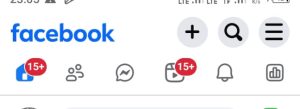
2. Scroll down and tap Settings & Privacy, then tap Settings.
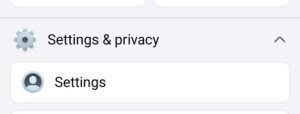
3. Tap Accounts Center, then tap Password and Security.
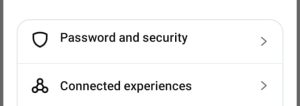
4. Under Security checks tap Where You’re Logged In.
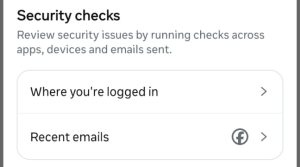
5. Review every device and location on the list. If you spot anything unfamiliar, select that device and tap Log Out.
Method 1: How to Recover Your Account If You Can Still Log In
This is the best-case scenario where the hacker has not yet changed your password, possibly because they are running their activities quietly without alerting you. If you can still log in, act fast and follow these steps before they lock you out:
- Go to Settings & Privacy and tap Settings.
- Tap Accounts Center, then tap Password and Security.
- Tap Change Password and set a new, strong password.
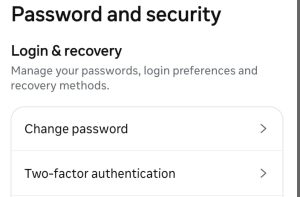
- Go back to Where You’re Logged In and log out of every other active session immediately.
After changing your password, proceed to the security section at the end of this guide to fully lock down your account.
Method 2: How to Recover Your Account When the Hacker Changed Your Password
This is a very common scenario. As soon as a hacker changes your password, Facebook’s security system detects the change and automatically sends a notification to your original email address with a link to confirm whether it was you who made the change. Here is how to use that email to get back in:
- Open your email inbox and type “Facebook” in the search bar. A list of Facebook notifications will appear.
- Look for the email that says “Your password was changed” and open it.
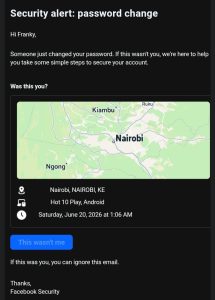
- At the bottom of that email, click the link that says “This wasn’t me.”
As a result, Facebook immediately cancels the password change the hacker made and guides you through the steps to set a new password and secure your account. This method works quickly, so check your email as soon as you notice you cannot log in.
Method 3: How to Recover Your Account When the Hacker Changed Your Email and Phone Number
This is the most serious scenario. When a hacker changes both your email address and your phone number, they cut off every automated recovery channel. However, recovery is still possible in 2026 if you follow this exact process carefully.
Before you start: Go to your email provider and secure your email account first. Change your email password and enable two-factor authentication on it. If the hacker also controls your email, recovering your Facebook account becomes pointless because they will simply intercept every recovery link Facebook sends.
Next, check your original email inbox for a message from Facebook with the subject “Your email was changed.” If you find that email, click “Secure your account” immediately this is the fastest recovery path.
If that email is not there, follow these steps:
- Use a trusted device. Use a phone or laptop you have previously used to log into your Facebook account. Facebook’s fraud detection system recognizes known devices and this significantly increases your chances of getting through.
- Visit facebook.com/hacked on your browser like Crome or Brave. On the landing page, click Next to begin the recovery process.
- Enter your old details. Type the email address, phone number, or Facebook username that was previously linked to your account. Even if the hacker deleted them, Facebook keeps them archived for a short time. Click Continue.
- Identify your account. Facebook displays the accounts associated with the information you entered. Select your account from the list and tap Recover.
- Choose a recovery method. Facebook shows you a list of contact methods to receive a security code. If you do not recognize any of the contact details shown because the hacker replaced them, tap the link at the bottom that says “No longer have access to these?” or “Try another way.”
- Provide a new email address. Facebook asks you to enter a new, secure email address that the hacker does not have access to. This must be an email account you currently own and that has never been linked to Facebook before. Enter it and click Continue.
- Verify your identity. Depending on the severity of the situation, Facebook will ask you to upload a government-issued ID to confirm that the account belongs to you. Your Kenya National ID, passport, or driving license are all accepted. When photographing your ID, ensure all four corners are visible, the text is sharp and readable, and there is no glare. Facebook uses AI to review submissions in 2026 blurry or cropped images are automatically rejected.
- Wait for Facebook’s response. ID reviews typically take a few days. During this time, do not submit additional requests. Sending multiple requests can flag your case as suspicious and delay the entire process. Facebook will contact you on the new email address you provided in Step 6 with the outcome.
How to Secure Your Account After Successful Recovery
Once you are back in, do not stop there. The next thing you need to do is make sure this never happens again. Here are the steps to properly lock down your account:
Set a strong new password. Start by changing your password immediately. Use a combination of uppercase and lowercase letters, numbers, and special characters.
Enable two-factor authentication. In addition to a strong password, two-factor authentication adds a second layer of security every time someone tries to log into your account. To enable it, go to Password and Security and tap Two-Factor Authentication. Facebook gives you three options, a text message code, an authenticator app, or a security key. The authenticator app such as Google Authenticator is the safest choice because it generates codes locally on your phone, making it impossible for a hacker to intercept them via text message.
Turn on login alerts. Finally, go to Password and Security and enable Security Alerts. This ensures Facebook notifies you immediately any time someone logs into your account from a new device or location.