This guide to tax returns for TSC teachers covers teachers whose only income is their TSC pay. It explains each step and each figure, with worked examples, so you can check the Excel return without guessing.
We filed our own return this way, on a Windows laptop with Microsoft Excel, using our own TSC P9. The screenshots come from that return, so your dates and figures will differ.
Why TSC Teachers Should Use File Return
iTax also offers ITR For Employment Income Only. KRA disabled editing in that return, so you cannot correct a figure. File Return gives you the IT1 return, and its autopopulated version has sections you can edit. TSC teachers need that, because the autopopulated figures can differ from the P9. In our return, gross pay was KSh 5,000 higher than the P9 and pension was KSh 10,800 lower. KRA says that when you notice a discrepancy, you file the IT1 return instead. That is why we send tax returns for TSC teachers through File Return.
How to File Tax Returns for TSC Teachers: Step by Step
Step 1: Download your P9.
Go to tpay.tsc.go.ke and choose Download P9 for the year you are filing. Keep the P9 open, because you will compare it with the Excel return.
Step 2: Click File Return.
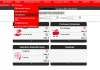
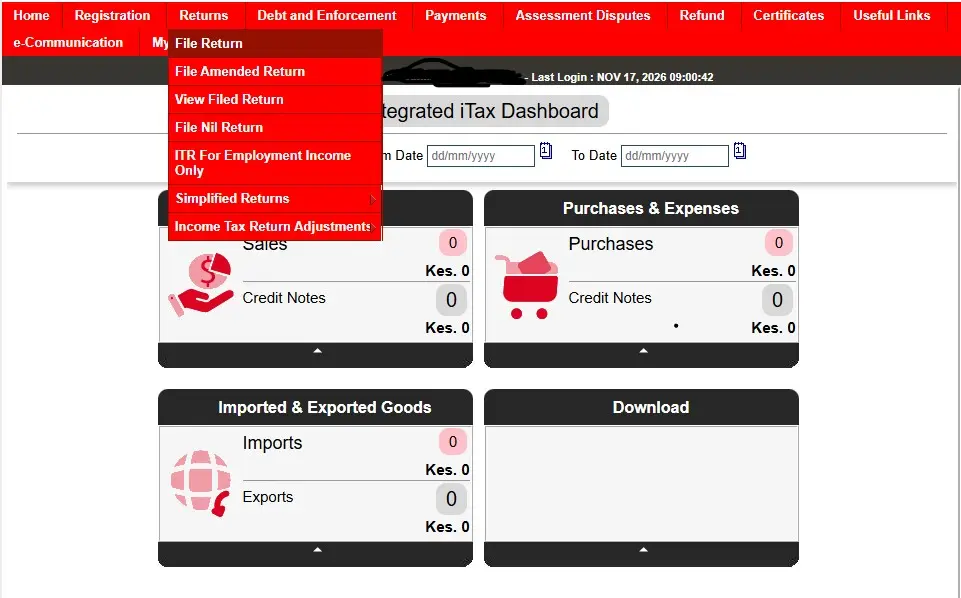
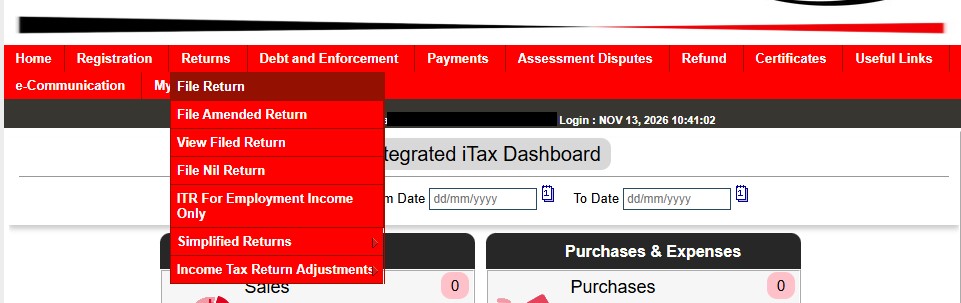
Log in at itax.kra.go.ke. Click Returns, then File Return.
Step 3: Choose your tax obligation.
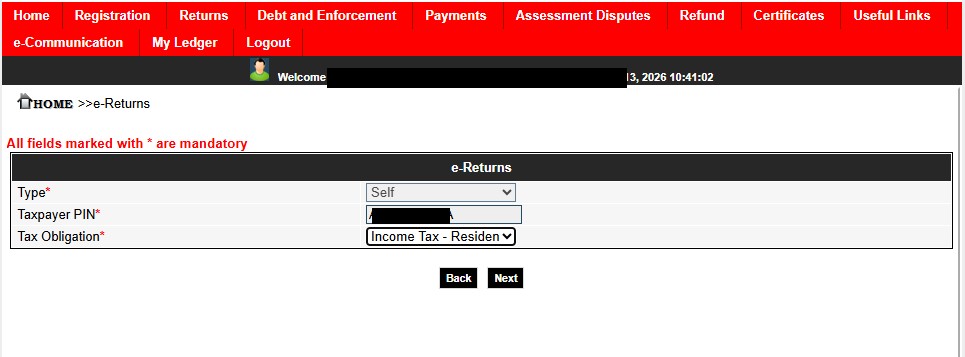
On the e-Returns page, Type shows Self and your PIN fills in on its own. Open the Tax Obligation list and pick Income Tax – Resident Individual. Click Next.
Step 4: Download the autopopulated return.
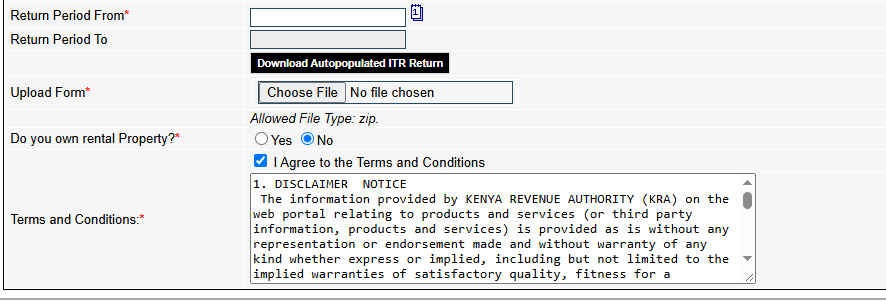
On the next page, click the calendar icon beside Return Period From and pick 1 January of the year you are filing. Click Download Autopopulated ITR Return. iTax downloads a zip file with your details and figures already filled in.
Step 5: Extract the zip and unblock the Excel file.
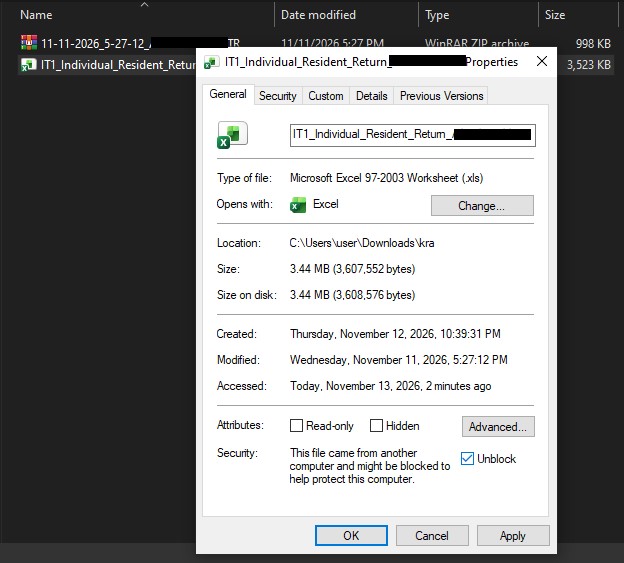
Right-click the zip file and extract it. Inside is an Excel file named IT1_Individual_Resident_Return followed by your PIN. Right-click that file and click Properties. Tick Unblock at the bottom, then click OK. Windows blocks files you download from the internet, and Excel keeps their macros off until you unblock them.
Step 6: Open the file and enable content.
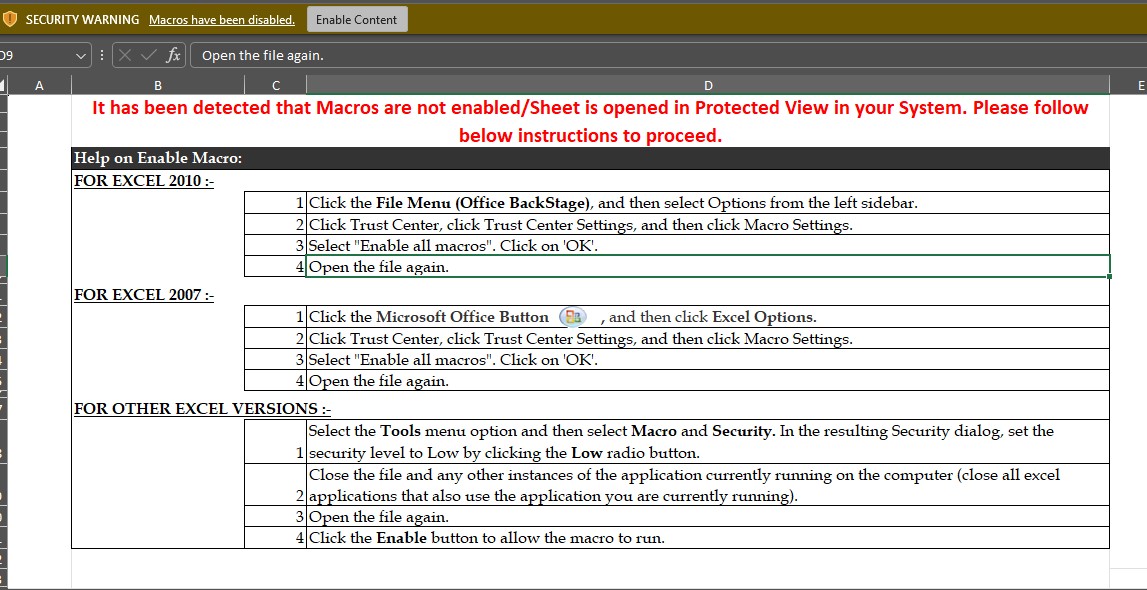
Open the Excel file. A yellow bar warns that Excel switched macros off. Click Enable Content. If the red message “Macros are not enabled” stays on screen, follow the instructions on the sheet. In Excel, click File, Options, Trust Center, Trust Center Settings and Macro Settings. Choose Enable all macros, click OK and open the file again.
How to Compare and Correct the Autopopulated Return
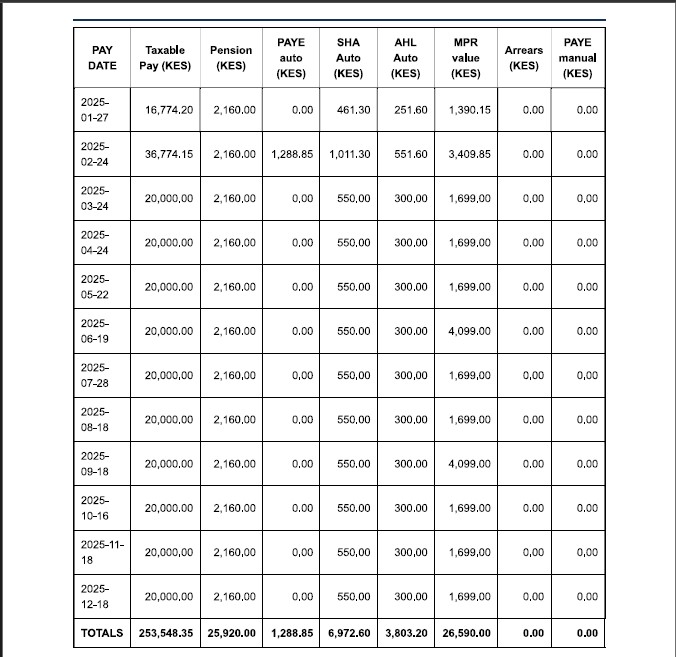
The autopopulated return arrives with figures filled in. Your job is to check each one against your P9 and correct any that differ. Open your P9 and find the TOTALS row at the bottom. Here are the totals from our P9, which we use as the example in every step:
| P9 column | Our total |
| Taxable Pay | 253,548.35 |
| Pension | 25,920.00 |
| SHA auto | 6,972.60 |
| AHL auto | 3,803.20 |
| PAYE auto | 1,288.85 |
| PAYE manual | 0.00 |
| MPR value | 26,590.00 |
Step 7: Check the Basic Info sheet.
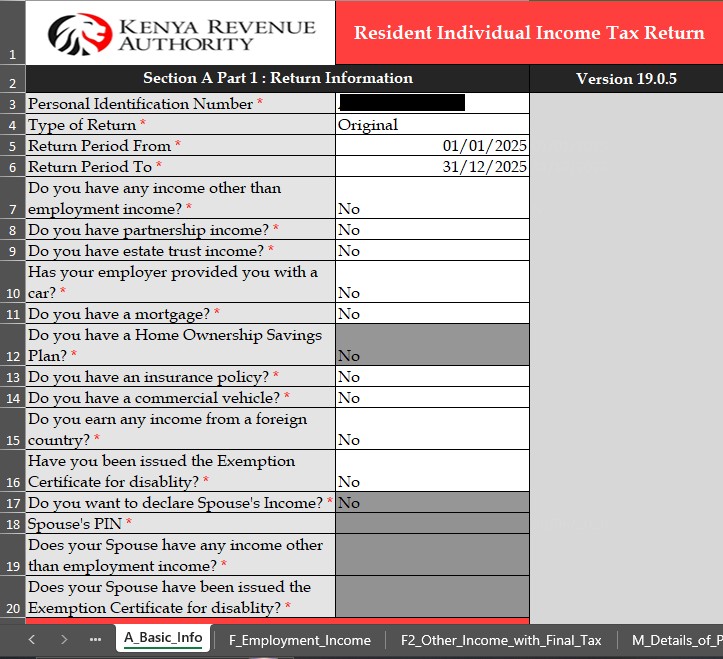
The first sheet, A_Basic_Info, shows your PIN, the type of return and the return period. It also shows Yes or No answers about income besides employment, a mortgage, an insurance policy and more. If your only income is your TSC pay, every answer should be No. If an answer is wrong, correct it. Leave the type as Original unless you are correcting a return you already filed.
Step 8: Check Section F, Employment Income.
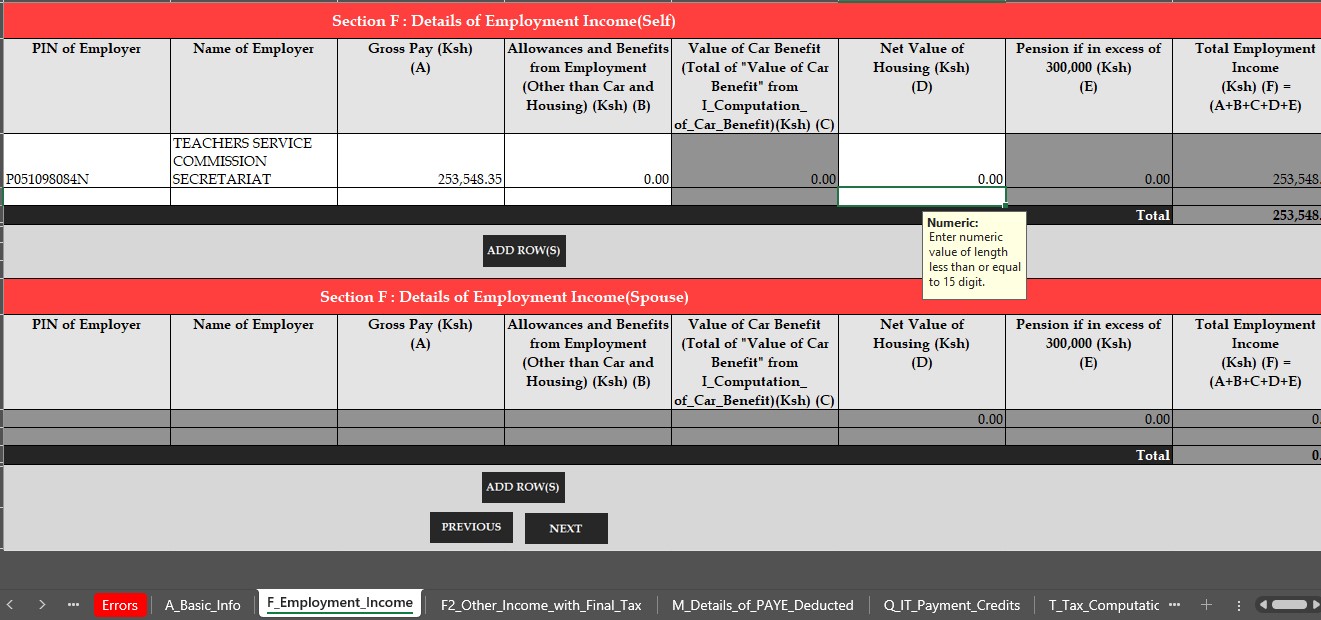
Open F_Employment_Income. Compare Gross Pay (A) with the Taxable Pay total on your P9. On your P9, Taxable Pay is your gross pay before deductions, because SHA auto is 2.75% of it and AHL auto is 1.5% of it. If the two differ, type the P9 total. Our return showed 258,548.35, so we typed 253,548.35.
Step 9: Check Section M, PAYE.
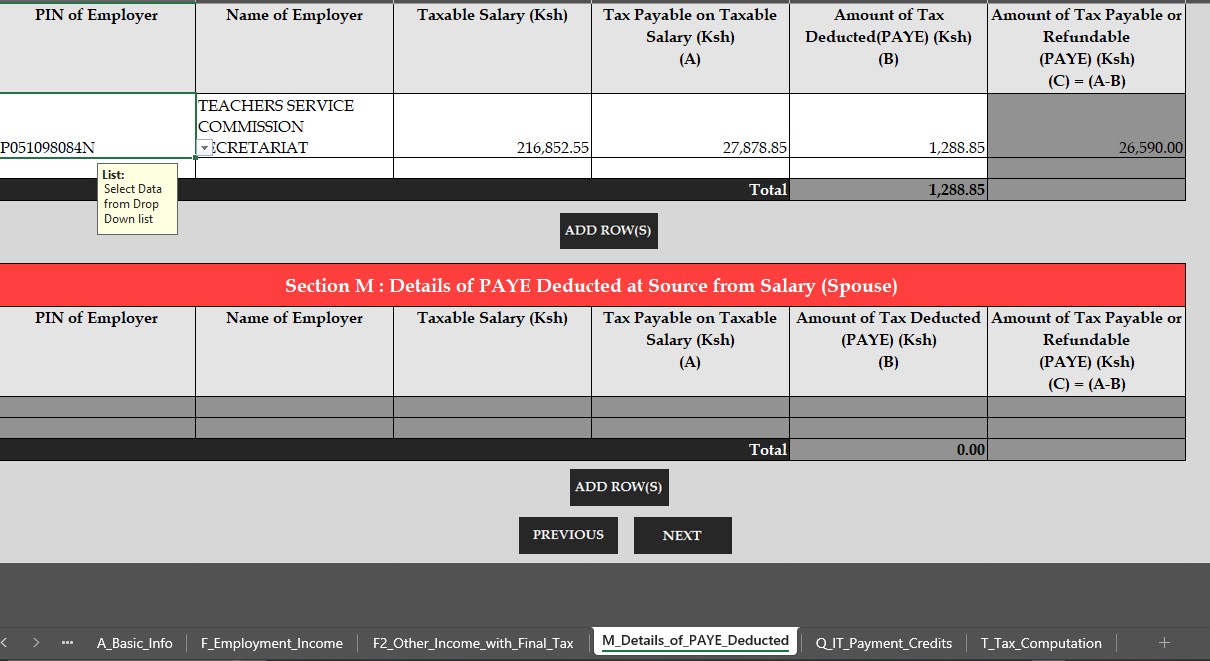
Open M_Details_of_PAYE_Deducted. Check three figures.
- Taxable Salary is the pay KRA taxes. It is your gross pay minus your allowable deductions, which are pension, SHA and AHL. Some P9s call it chargeable pay. The sum for us was 253,548.35 minus (25,920.00 + 6,972.60 + 3,803.20), which gave 216,852.55. Our return showed 232,652.55, so we corrected it.
- Tax Payable on Taxable Salary is the tax charged before relief. Your P9 has no column for it, but you can build it. PAYE equals the tax charged minus relief, so the tax charged equals PAYE plus relief. Add PAYE auto, PAYE manual and the MPR value total. The sum for us was 1,288.85 plus 0.00 plus 26,590.00, which gave 27,878.85. Our return showed 17,862.86, so we corrected it.
- Amount of Tax Deducted (PAYE) is PAYE auto plus PAYE manual. Ours was 1,288.85 and needed no change.
The last column, Amount of Tax Payable or Refundable (PAYE), works itself out as the tax payable minus the PAYE. Its answer must equal the MPR value total on your P9. Ours was 27,878.85 minus 1,288.85, which is 26,590.00.
Step 10: Check Section T, Tax Computation.
Open T_Tax_Computation. Compare your deductions in line 11 with the P9 totals: pension in line 11.1, AHL in line 11.5 and SHIF in line 11.6. Correct any that differ. Our pension showed 15,120.00, so we typed 25,920.00. Our AHL and SHIF were already right. Then check your personal relief in line 12.6. Personal relief is KSh 2,400 a month, so a full year is KSh 28,800, and that is what ours showed.
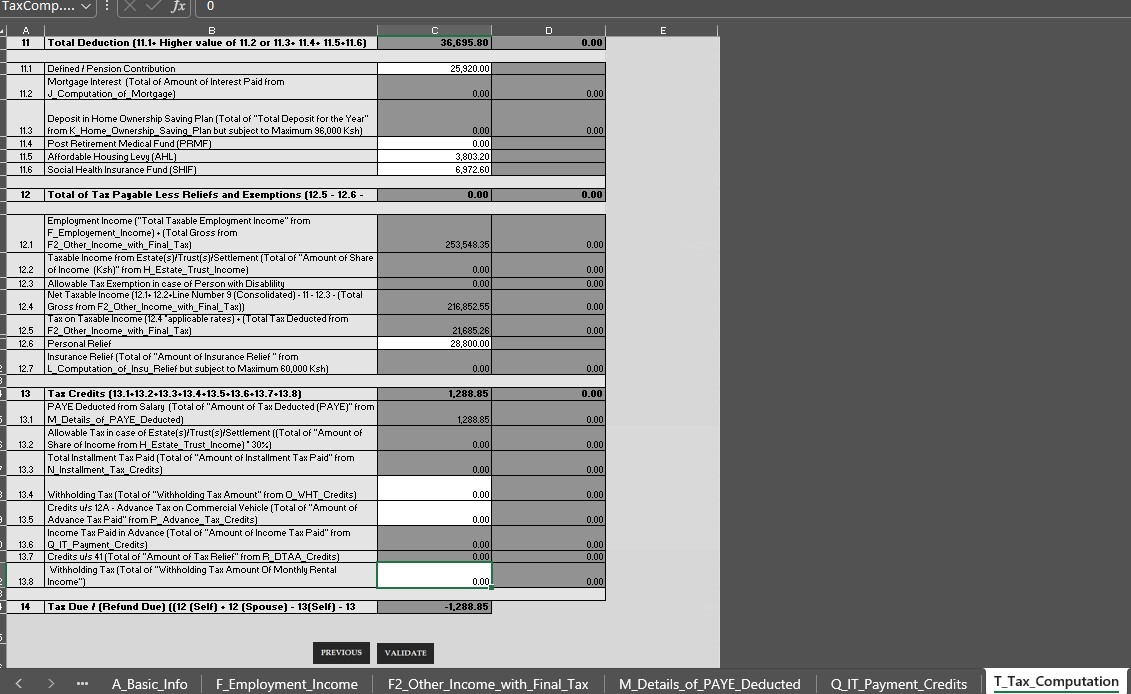
Here is everything we compared, and what we changed:
| Item | P9 | Our autopopulated figure | After we corrected it |
| Gross pay (Section F) | 253,548.35 | 258,548.35 | 253,548.35 |
| Pension (Section T, line 11.1) | 25,920.00 | 15,120.00 | 25,920.00 |
| SHIF (Section T, line 11.6) | 6,972.60 | 6,972.60 | No change |
| AHL (Section T, line 11.5) | 3,803.20 | 3,803.20 | No change |
| PAYE (Section M) | 1,288.85 | 1,288.85 | No change |
| Taxable Salary (Section M) | 216,852.55 | 232,652.55 | 216,852.55 |
| Tax Payable on Taxable Salary (Section M) | 27,878.85 | 17,862.86 | 27,878.85 |
Check Tax Returns for TSC Teachers Before You Validate
Run these four checks after you correct the figures. They catch typing slips.
- Taxable salary. The Taxable Salary in Section M must equal Net Taxable Income in Section T, line 12.4. Ours were both 216,852.55. If they differ by even a few cents, you mistyped a deduction.
- The last column of Section M. It must equal the MPR value total on your P9. Ours was 26,590.00. If it is off, recheck the tax payable sum.
- Total Deduction. Line 11 in Section T must equal pension plus SHA plus AHL. Ours was 36,695.80.
- Tax Due / (Refund Due). Line 14 gives your final answer. A negative figure means you overpaid and a refund is due. In our return, the tax on our taxable income was 21,685.26, but personal relief cancelled all of it, so the PAYE we paid came back as a refund of 1,288.85. A positive figure means you owe tax.
How to Validate and Upload Tax Returns for TSC Teachers
Validate only after the four checks pass. Then you can upload your tax returns for TSC teachers in three short steps.
Step 11: Validate and generate the upload file.
On the T_Tax_Computation sheet, click Validate. Fix anything the red Errors tab reports. When the sheets are valid, Excel asks “Do you want to generate upload file?” Click Yes. Excel then tells you where it saved the zip file. Note that folder.
Step 12: Upload the zip and submit.
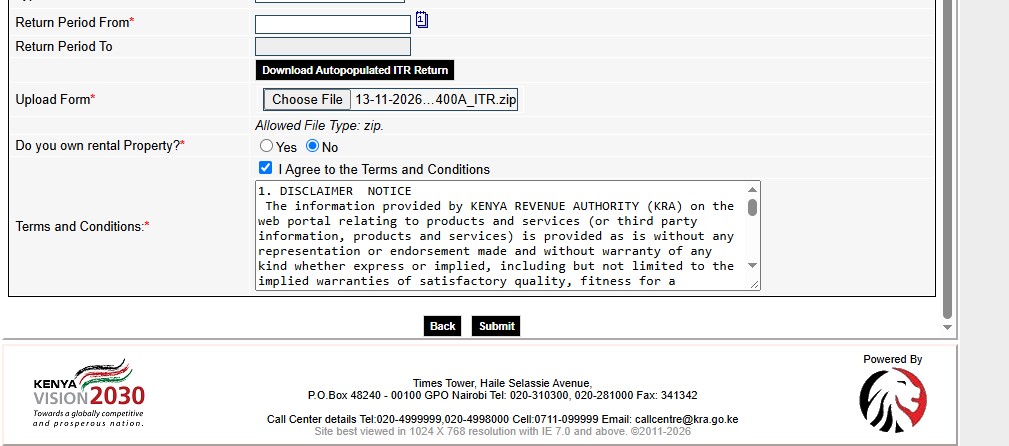
Go back to iTax. Click Choose File beside Upload Form and pick the zip file Excel just created. You now have two zip files, and both end in _ITR. The first came from iTax in step 4 and the second came from Excel in step 11. Upload the second one. iTax accepts only zip files. Answer Do you own rental property? honestly, tick I Agree to the Terms and Conditions and click Submit.
Step 13: Keep your receipt.
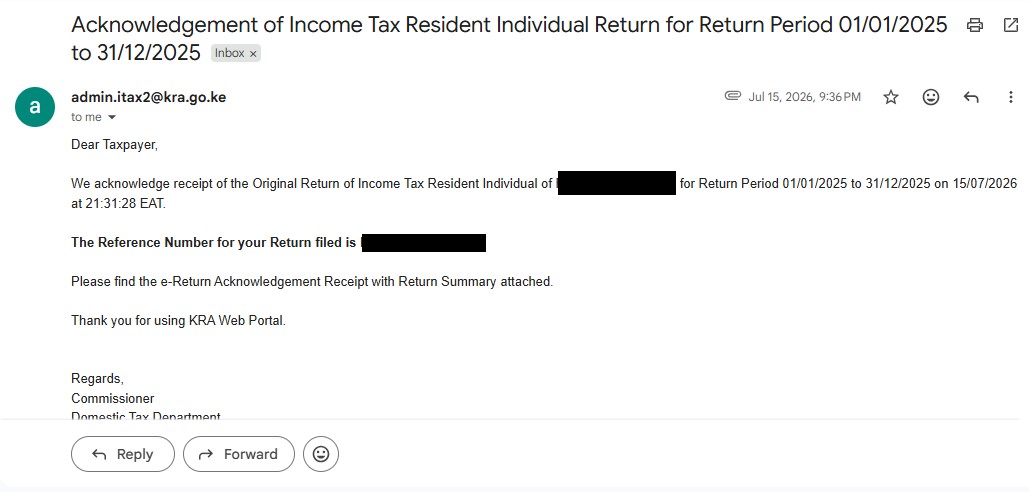
iTax shows a confirmation page. KRA also emails an acknowledgement from admin.itax2@kra.go.ke with a return summary attached.
When to File Tax Returns for TSC Teachers
TSC has told all teachers and secretariat staff to file returns through iTax. KRA moved the filing deadline for individuals with employment income from June 30 to April 30, so check KRA’s current notice before you file. The penalty for filing an individual return late is the higher of 5% of the tax due or KSh 2,000, so late tax returns for TSC teachers cost at least KSh 2,000. KRA also says you must file any missing earlier returns before it accepts the current one.
Tax Returns for TSC Teachers: FAQs
Which return do TSC teachers file?
Click Returns, then File Return, choose Income Tax – Resident Individual and download the autopopulated return. Compare it with your P9 and correct any figure that differs. Nil returns are for individuals with no income.
Where do I get my P9?
Download it from TSC’s T-pay at tpay.tsc.go.ke. If you have left TSC, ask your TSC county office.
What if the autopopulated figures do not match my P9?
Type the correct figures from your P9 into the Excel sheets. Autopopulated figures can differ from the P9, and ours did.
What is taxable salary?
It is your gross pay minus your allowable deductions, which are pension, SHA and AHL. Your gross pay is the Taxable Pay total on your P9.
What is tax payable on taxable salary?
It is the tax charged before relief. Add your PAYE (auto plus manual) and the MPR value total from your P9.